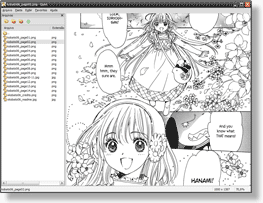
Quivi screenshot Quivi is an image viewer (specialized for comic/manga reading) for Windows which supports many file formats and compressed (zip, rar) files. It is aimed for fast & easy file browsing with keyboard or mouse.

Features

Download

Current version: 0.6

News / Changelog

Version 0.6 - 2008-06-07

Version 0.5 - 2007-08-26

Version 0.4 - 2007-03-20

Version 0.3 - 2006-10-15

Version 0.2 - 2006-07-20

Documentation

Installation

If you downloaded the installer, just execute it and follow the instructions. To run Quivi, open it in the Start > Programs menu.

If you downloaded the zip file, unzip it to a location of your choice. To run Quivi, execute the file Quivi.exe inside the unzipped folder.

Usage

To open an image, select it in the file list. To navigate through the folders, double click a folder to open it, or double click the ".." folder (the first in the list) in order to open the parent folder. Alternatively, you can click on the folder icon to select a folder to open.

With an image opened, you can drag it with the mouse to view it. You can also right click it to hide the file list, right click again to show it back. Right click the image list to show a popup with the last directories browsed (only directories in which you have opened a image will show up) and the favorites directories. To add a directory to the favorites, open it and click on the respective icon in the file list toolbar.

You can also do everything with the keyboard. Press home and end (or space bar) to move the file list selection up and down. If you select an image, it will open. You may press shift to prevent this. Press insert to open a selected folder and delete to open the parent folder. Press Ctrl+Page Up/Down to open the previous/next sibling folder (e.g., assuming these directories exists: C:\something\folder1, C:\something\folder2, C:\something\folder3; if you are inside the folder2 directory and press Ctrl+Page Down, it will open the folder3 directory).

Press the arrows to move the image. Press Page Up/Down to move the image up/down one screen at a time.

You can customize the keys bindings in the options dialog (File > Options), where you can also specify how the images are fit in the screen.

Contact

You can find me at conradoplg (at) gmail (dot) com or in the project forum. Please tell me if you have suggestions, bug reports, feature requests, etc!

Acknowledgements